News · Technology
Lost a Work Laptop? Windows 11 Previews Remote Lock Without a Wipe
Microsoft is testing Remote Lock for managed Windows laptops. IT can block sign-in without erasing files, but connectivity and device requirements matter.
Event date: 2026-11-16
Imagine getting home from a work trip and realizing your company laptop is missing. You want the computer back, of course, but the documents on it need attention right away. Microsoft is testing another way for IT teams to respond: Remote Lock for Windows 11.
Highlighted in the Windows Insider announcement on November 16, 2026, the feature lets administrators use Microsoft Intune to lock a lost, stolen or potentially compromised device without immediately erasing its contents. It is still a preview, rather than something every Windows 11 laptop already has.
This goes beyond an ordinary lock screen
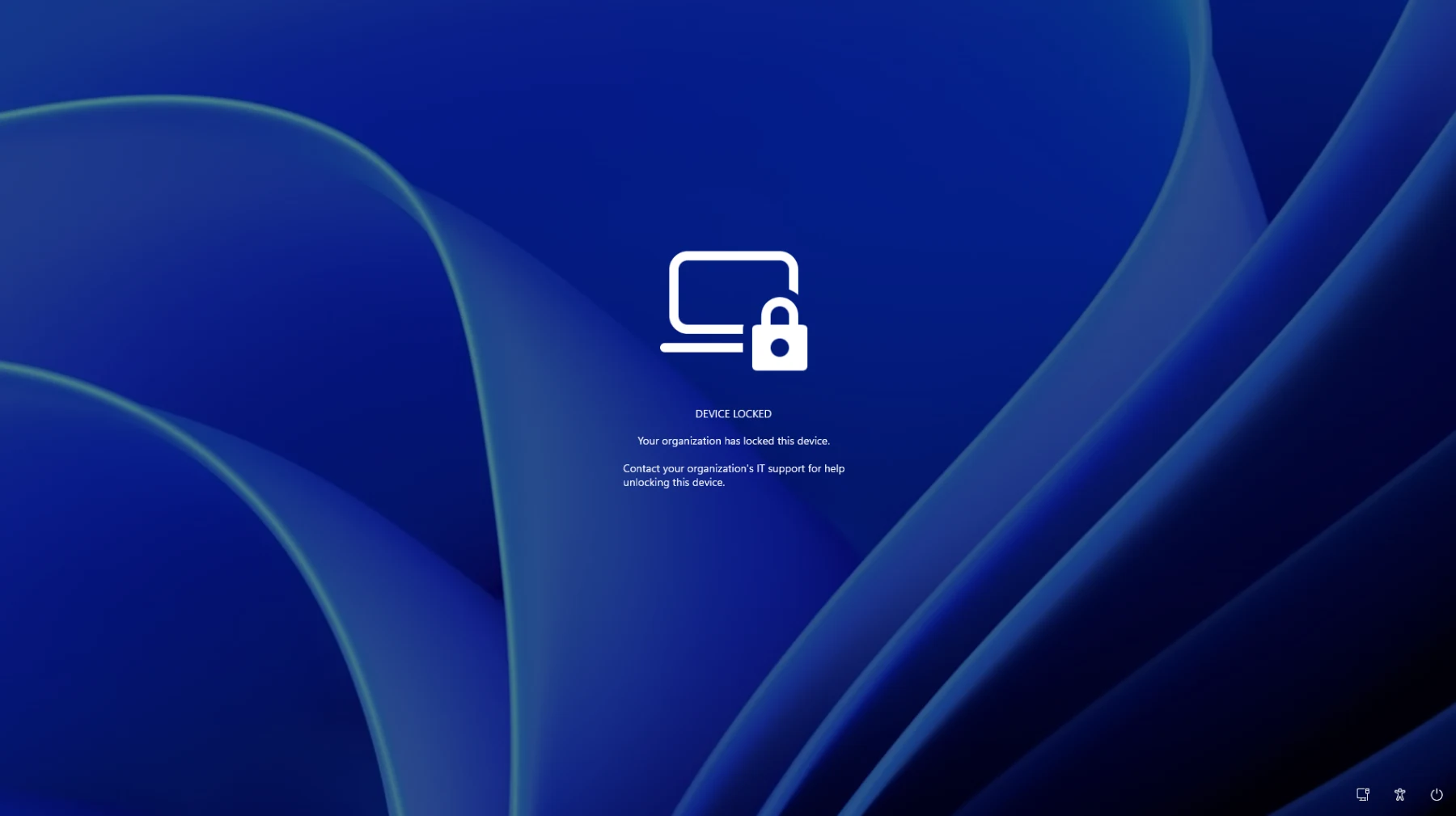
A normal locked screen still lets you return with a PIN or password. Remote Lock is meant to do something different: Windows signs out active sessions, removes the sign-in options and shows a message saying the organization has locked the device.
Knowing the password is no longer enough to get back in. The release notes for Experimental Build 26340.10013 explain that only an administrator can lift the lock remotely. User files stay in place, the computer remains managed and existing BitLocker protection stays enabled.
That gives IT another option when a missing laptop might still be recovered. Blocking access first does not require immediately wiping the drive. Signing out active sessions, however, should not be read as a promise that unsaved work will be preserved.
It stays locked offline, but the command must arrive first
Two different stages matter here. Intune applies the locking policy at the device's next check-in. A disconnected laptop cannot magically receive a new instruction before it reconnects.
Once the lock has taken effect, restarting the computer or disconnecting it does not remove it. Unlocking requires the device to receive the corresponding Intune policy. A PIN or local administrator account does not provide a sign-in-screen shortcut around that process.
Which devices qualify?
The preview targets managed devices running Windows Pro, Enterprise or Education and meeting Microsoft's Entra join, hybrid join or MDM enrollment requirements. Think organization-managed work laptops, rather than a new button that automatically appears on everyone's personal PC.
Administrators configure a custom profile in Intune. LockState uses 1 to lock and 0 to unlock, while LockReason and RecoveryHint can provide an explanation and support contact. Testing both the locking and recovery workflow on a separate device group is a sensible step before using it on working machines.
BitLocker and account security still have separate jobs
Remote Lock controls Windows sign-in; BitLocker encrypts the drive's contents. That distinction matters when hardware goes missing, because blocking a login screen is not the same thing as encrypting the documents behind it.
Microsoft also says Remote Lock does not block boot and recovery paths, isolate the network or invalidate the user's credentials. If an account may have been compromised too, administrators still need to address that account and its sessions separately.
For someone using a company laptop, the practical advice is straightforward: report a loss promptly and follow your organization's process. Remote Lock adds another response option for IT, while protecting the data still calls for several layers of security.
Sources & references
- Microsoft — Remote lock preview, requirements and limitations ↗learn.microsoft.com
- Windows Insider Blog — November 16, 2026 announcement ↗blogs.windows.com
- Microsoft — Experimental Build 26340.10013, November 16, 2026 ↗learn.microsoft.com
- Microsoft — BitLocker overview ↗learn.microsoft.com
- WinPoin — Remote Lock coverage reference ↗winpoin.com